Using TensorBoard and MLFlow#
This notebook shows how to activate a server to use TensorBoard and MLFlow. TensorBoard and MLFlow are model evaluation tools often used in industry. Hyrax automatically emits metrics to both for real time model performance evaluation.
For additional information about these tools see:
TensorBoard from the Terminal#
Whenever training or inference is completed, a results directory is generated that contains timestamped “train” and “infer” folders
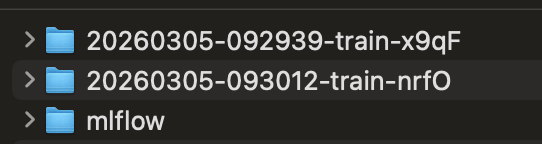
To activate TensorBoard, navigate to the results directory from the terminal and activate a virtual environment that has TensorBoard installed. From this directory, run tensorboard --logdir .. In general, it is acceptable to run tensorboard --logdir {path_to_results_directory} from anywhere instead of explcitly navigating to the results directory.
TensorBoard should now be active and the last line on the terminal should read TensorBoard 2.20.0 at http://localhost:6006/ (Press CTRL+C to quit). Navigate to http://localhost:16006/ from the URL bar of any web browser to use TensorBoard.
TensorBoard from a Notebook#
To view TensorBoard in a notebook, add a code block with the following two lines:
%load_ext tensorboard
%tensorboard --logdir {path_to_results_directory}
This will load TensorBoard directly in the notebook. To reload TensorBoard without restarting the notebook, use the following instead:
%reload_ext tensorboard
%tensorboard --logdir {path_to_results_directory}
This may be necessary because TensorBoard does not always appear properly in the notebook the first time it is loaded.
Note that after loading TensorBoard in a notebook, it can be accessed from a web browser in the same manner as before without reactivating it from the terminal; the port to access it from is 6006.
MLFlow from the Terminal#
To launch MLFlow from the terminal, simply run mlflow server --port 6006 --backend-store-uri sqlite:///{path_to_results_directory}/mlflow/mlflow.db. MLFlow can be accessed from any web browser at http://localhost:6006/.
MLFlow from a Notebook#
To view MLFlow in a notebook, execute a Python code block with the following code
import subprocess
from IPython.display import IFrame

backend_store_uri = f"sqlite:///{path_to_results_directory}/mlflow/mlflow.db"
mlflow_ui_process = subprocess.Popen(
    ["mlflow", "ui", "--backend-store-uri", backend_store_uri, "--port", "6006"],
    stdout=subprocess.PIPE,
    stderr=subprocess.PIPE,
)

IFrame(src="http://localhost:6006", width="100%", height=1000)
Note that the path to the results directory likely includes a / at its start, so there should be four / characters following the sqlite: for backend_store_uri with an actual directory substituted in. As with TensorBoard, running this block also allows access to MLFlow from a web browser without reactivation from the terminal.
It may be the case that IFrame does not properly load anything and the space where MLFlow should appear in the notebook remains a blank space. In such an event, it is still possible to access MLFlow from a web browser and that may be the only way to actually use it.
A Note on Port Forwarding#
If the results directory is stored on a remote server that is sshed into, the ssh command has a -L option for port forwarding. For example, running ssh -L 16006:127.0.0.1:6006 {user@remote} will connect the local port 16006 to the remote port 6006.
This means TensorBoard and MLFlow can be activated from the remote results directory in the remote server’s terminal (or in a notebook) and accessed from a local web browser at http://localhost:16006.
To view TensorBoard or MLFlow on a notebook on the remote server, no port forwarding is required.